Working from home is no longer a temporary trend; it’s a permanent feature of the modern workforce. But let’s be honest: while the commute is great (all ten steps of it), the technical challenges are very real. How do you stay focused when your living room is also your office? How do you collaborate effectively with a team you only see in a small digital box?
The answer isn’t just having technology. It’s about mastering it.
As someone who has navigated the remote work landscape for over a decade, I’ve seen what works and what creates digital friction. The difference between a high-performing remote team and a group of disconnected individuals often comes down to the smart, intentional use of their tech stack.
This guide is your roadmap. We’re not just listing apps. We are diving deep into the strategies, tips, and workflows that turn your remote work tech from a simple tool into your greatest asset for productivity and collaboration. We will cover everything from setting up your digital workspace to advanced automation and protecting your digital well-being.
Let’s begin.
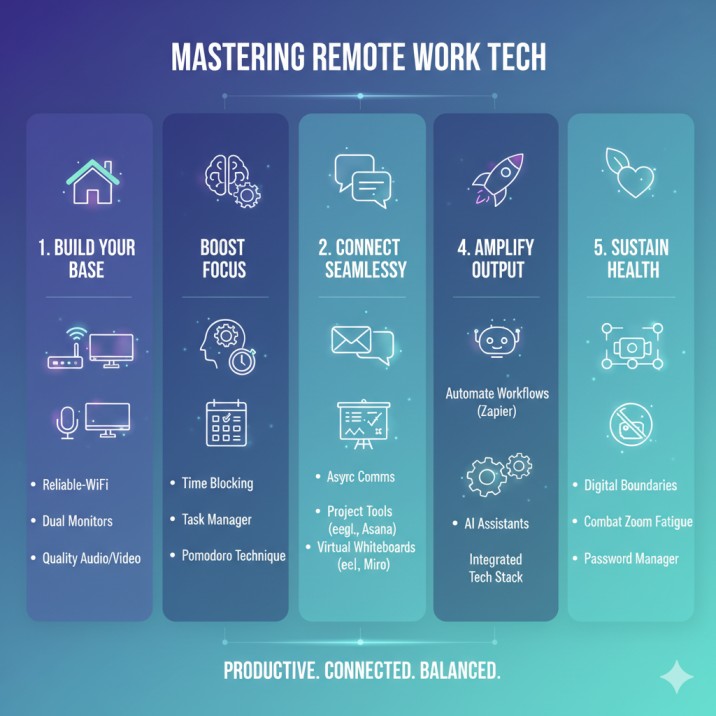
The Foundation: Building Your High-Productivity Digital Workspace
You wouldn’t build a house on a weak foundation. The same goes for your remote work life. Before you can tackle complex projects, you need to ensure your personal tech environment is stable, secure, and built for focus.
How to optimize your home office tech setup for maximum efficiency
Your physical setup directly impacts your digital productivity. A slow computer or a spotty connection creates constant, low-level stress that drains your focus.
- Invest in Your Core Hardware: Your laptop is your main engine. If it’s slow, you’re slow. You don’t need a top-of-the-line gaming machine, but investing in a computer with a solid-state drive (SSD) and at least 16GB of RAM is one of the best productivity investments you can make.
- The Dual-Monitor Advantage: The single best “tech tip” for screen-based work is using a second monitor. It’s been shown to boost productivity by 20-40%. It allows you to keep your communication app (like Slack or Teams) on one screen while your primary work (a document, codebase, or design) is on the other. This simple change eliminates the constant “alt-tabbing” that breaks your mental flow.
- Prioritize Good Audio and Video: In remote work, your face and voice are your presence. A grainy camera and a muffled microphone make you seem distant and unprofessional. You don’t need a $1000 setup. A high-quality external webcam (like a Logitech C920) and a dedicated USB microphone (like a Blue Yeti or even a headset with a good boom mic) make you look and sound clear, building trust and improving communication.
Why securing your home Wi-Fi for remote work is non-negotiable
When you work from home, your home network is your office network. This makes it a prime target. A security breach doesn’t just risk your personal data; it risks your entire company’s.
- Change Your Router’s Default Password: This is the #1 mistake people make. The default admin password for your router is publicly available online. Change it immediately.
- Enable WPA3 Encryption: Log into your router’s settings and ensure the Wi-Fi security is set to WPA3, or at minimum WPA2-AES. This encrypts the traffic between your devices and the router.
- Use a Guest Network: Almost all modern routers let you create a “guest” network. Put all your smart home devices (like smart speakers, TVs, and lightbulbs) on this guest network. Keep your main network only for your work computer and personal phone. This way, if a less-secure smart device is compromised, the attacker can’t access your work laptop.
- Install a Reputable VPN: A Virtual Private Network (VPN) creates an encrypted tunnel for your internet traffic. Even if your Wi-Fi is compromised, a VPN makes your data unreadable. Many companies provide one, but for personal use, services like NordVPN or ExpressVPN are excellent for data protection for remote employees.
Mastering Individual Productivity with the Right Tech
Productivity isn’t about working more; it’s about working smarter. Technology’s real power is its ability to help you manage your time, focus your attention, and organize your thoughts.
How to stay focused working from home using smart apps
The biggest challenge in remote work is the battle against distraction. Your home is filled with them. Use technology to build a fortress of focus around your time.
- Implement Digital Time Blocking: Don’t just use a to-do list; use a calendar. Time blocking is the practice of scheduling your entire day, including breaks and focus blocks. Use Google Calendar or Outlook Calendar to create 90-minute “Deep Work” blocks. Most importantly, share this calendar with your team so they know when you are in “do not disturb” mode.
- Use a Dedicated Task Manager: Your brain is for having ideas, not holding them. Get every task, big or small, out of your head and into a system.
- For simple tasks: Todoist or Microsoft To Do are perfect.
- For complex projects: How to use Trello for personal project management is a great starting point. Create a simple “To Do,” “Doing,” and “Done” board for your own work.
- Embrace the Pomodoro Technique: The Pomodoro Technique is simple: work for 25 minutes, then take a 5-minute break. After four “Pomodoros,” take a longer 15-30 minute break. This isn’t just a gimmick; it leverages how your brain works, balancing focus with rest to prevent burnout. Use simple web apps like
Tomato-timer.comor a desktop app likeFlowto manage your intervals.
The best note-taking apps for remote collaboration and personal knowledge
Your notes are your second brain. A good note-taking system is essential for organizing project details, meeting minutes, and personal ideas.
- For Building a “Wiki”: Tools like Notion or Coda are revolutionary. They are more than note apps; they are all-in-one workspaces. You can create a team wiki, track projects (like Trello), and write documents all in one place. Creating a shared “Project Hub” in Notion where all meeting notes, timelines, and assets live is a game-changer for team transparency.
- For Quick Capture and Brainstorming: Sometimes you just need to jot an idea down. Evernote is still a fantastic digital file cabinet. For more visual thinkers, Microsoft OneNote is excellent for free-form notes, as is FigJam (from the makers of Figma) for quick digital whiteboarding.
- For Meeting Notes: The golden rule of meeting notes: they should be collaborative and actionable. Use a shared Google Doc or a Notion page. Assign a note-taker for each meeting (rotate this role!) and use a template:
- Attendees
- Agenda Items
- Key Decisions
- Action Items (with a person’s name and a due date assigned to each).
The Art of Virtual Collaboration: Connecting Your Team
This is where remote work lives or dies. Technology must bridge the physical gap, enabling seamless communication, transparent project management, and engaging collaboration.
Effective communication tools for distributed teams: Async vs. Sync
The most advanced remote teams understand a critical concept: asynchronous (async) vs. synchronous (sync) communication.
- Synchronous (Sync) = Real-Time: This is for urgent issues, complex problem-solving, and team bonding.
- Tools: Slack, Microsoft Teams, Zoom, Google Meet.
- The Trap: Overusing sync communication is the #1 killer of remote productivity. It leads directly to Zoom fatigue solutions for virtual meetings becoming necessary. If every small question becomes a 30-minute video call, no one ever gets any deep work done.
- The Fix: Set clear rules. Use Slack/Teams for quick, urgent questions. Use video calls only for scheduled, agenda-driven meetings (like 1-on-1s, team planning, or sensitive HR conversations).
- Asynchronous (Async) = On Your Own Time: This is for non-urgent updates, thoughtful feedback, and project documentation. This should be your default mode of communication.
- Tools: Email (for formal/external), Asana / Trello (for task-specific comments), Notion (for document feedback), and Loom (for video messages).
- The Power of Loom: Tools like Loom are async superstars. Instead of scheduling a 30-minute meeting to explain a design mockup, record a 5-minute video of your screen and voice. You walk through your feedback, send the link, and your teammate can watch it when it fits their schedule. This respects everyone’s focus time.
How to use Asana for remote project management and team transparency
A project management (PM) tool is your team’s single source of truth. Without it, you’re managing projects in email threads and Slack DMs, which is a recipe for disaster.
While many tools exist (Asana, ClickUp, Trello, monday.com), the principles are the same. Let’s use Asana as an example.
- Everything is a Task: Every single piece of work, from “Write blog post” to “Get legal approval,” should be a task in Asana.
- Assign One Owner: Every task must have one and only one person assigned to it. This eliminates the “I thought they were doing it” problem.
- Give it a Due Date: A task without a due date is just a wish. A date creates accountability.
- Communicate in the Task: This is the most important rule. All questions, files, and status updates related to a task should happen in the comments of that task. This stops valuable information from getting lost in Slack. When you do this, anyone on the team can click a project and see the exact status of every piece of work, along with its full history. This creates massive transparency and reduces the need for “status update” meetings.
How to use virtual whiteboards for team brainstorming and creative collaboration
The hardest thing to replicate remotely is the “magic” of a few people at a whiteboard, sketching out a new idea. Miro and FigJam have solved this.
These are infinite digital canvases where your team can collaborate in real-time. You can add digital sticky notes, draw diagrams, drop in images, and vote on ideas.
Pro-Tip for Better Brainstorms:
Don’t just open a blank canvas and say “Go!” This leads to chaos.
- Prepare the Board: The facilitator should pre-populate the Miro board with “frames” for each part of the brainstorm (e.g., “What’s working?”, “What’s not working?”, “New ideas”).
- Silent Brainstorm First (5-10 min): Give everyone 10 minutes to add their own sticky notes to the board in silence. This prevents “groupthink” and allows introverts to contribute just as much as extroverts.
- Group and Discuss (20 min): As a team, drag and drop similar sticky notes into clusters.
- Dot Vote (5 min): Give everyone three “dots” to vote on the ideas they feel are most important.
- Define Action Items: The ideas with the most votes become your action items. Move these immediately into your project management tool (like Asana).
Advanced Remote Work Strategies: Automation and Integration
Once you have your foundation, you can start adding force multipliers. Advanced remote teams don’t just use their tools; they connect them.
How to integrate your remote tech stack for seamless workflows
Your “tech stack” is your collection of apps (e.g., Slack, Google Calendar, Asana, Google Drive). By themselves, they’re useful. Connected, they’re powerful.
The goal is to eliminate manual “copy-and-paste” work. This is where automation tools for remote productivity like Zapier and Make (formerly Integromat) come in.
These are “digital glue” that connect apps that don’t normally talk to each other. You create simple “If-This-Then-That” recipes. For example:
- IF a new row is added to a Google Sheet…
- THEN automatically create a new task in Trello.
- IF a customer fills out a Typeform on your website…
- THEN post a notification in a specific Slack channel and add the customer’s email to a Mailchimp list.
- IF you “star” a message in Slack…
- THEN automatically create a new task in your Todoist inbox.
Setting up just one or two of these automations can save you hours of “admin” work each week, freeing you up for work that actually matters.
Leveraging AI assistants for remote workers to reclaim your time
AI is no longer science fiction; it’s a practical productivity tool. Many of the apps you already use are adding AI features.
- AI in Note-Taking: In Notion, you can highlight a messy block of meeting notes and ask Notion AI to “Summarize” or “Find action items.”
- AI in Communication: Tools like
Krisp.aiuse AI to remove background noise from your microphone in real-time, so your team doesn’t hear your dog barking. - AI in Scheduling: Calendly is a simple AI scheduler. Instead of the 5-email chain of “What time works for you?”, you just send your Calendly link. It knows your availability and books the meeting for you.
- AI in Writing: Tools like Grammarly (and, of course, ChatGPT) can help you draft emails, rephrase a a non-clear message to be more professional, or check your reports for clarity. This is a huge help when English is a second language for some team members.
Security and Digital Wellness: The Human-Centric Tech Stack
Technology is a tool, but it’s a tool used by humans. A successful remote work strategy must account for human factors like burnout, security fatigue, and the need for boundaries.
Data protection tips for remote employees beyond the VPN
We covered the basics (VPN, Wi-Fi), but security is a daily practice. Your company’s security is only as strong as its most tired, distracted employee.
- Use a Password Manager: Stop using the same three passwords for everything. It’s a massive security risk. Use a password manager like 1Password or Bitwarden. They create and store unique, un-hackable passwords for every single site. You only have to remember one master password.
- Enable Multi-Factor Authentication (MFA): Turn on MFA (also called 2FA) for every account that offers it (especially email, banking, and your PM tool). This means that even if a hacker steals your password, they can’t log in without the second “factor,” which is usually a code from an app on your phone.
- Beware of Phishing: 90% of data breaches start with a phishing email. Be deeply suspicious of any email that asks you to log in, download a file, or provides a sense of extreme urgency. Trustworthy companies like Microsoft or Google will never ask you for your password in an email.
Digital wellness tips for remote workers to prevent burnout
Tech is the source of remote work burnout. But it can also be the solution.
- How to combat Zoom fatigue:
- Hide Self-View: One of the main reasons video calls are so draining is that you’re forced to stare at your own face for hours, which is unnatural and triggers self-criticism. On Zoom, right-click your video and select “Hide Self View.”
- Make Meetings “Camera-Optional”: Not every meeting needs to be a video call. For simple check-ins or information-sharing, agree as a team to be audio-only.
- Schedule Shorter Meetings: Use your calendar’s “speedy meetings” feature to default all 30-minute meetings to 25 minutes, and all 1-hour meetings to 50 minutes. This automatically bakes in 5-10 minute breaks for people to stretch, get water, and rest their eyes.
- Setting boundaries with remote work technology:
- Use Slack’s “Do Not Disturb”: When you start deep work, set your Slack status to “Focusing (2 hours)” and turn on Do Not Disturb. This pauses all notifications.
- Remove Work Apps From Your Phone: This is the most powerful boundary you can set. If you don’t need Slack or work email on your personal phone, delete them. This makes it physically impossible to “just check in” at 10 PM.
- Use Digital Wellness Apps: Use apps like Headspace or Calm for guided 10-minute meditations to mentally reset during the day. Use a simple app like Time Out on your Mac or Stretchly on Windows to remind you to take a 20-second break to look away from your screen every 20 minutes.
Conclusion: Technology is a Tool, but You Are the Architect
The best remote work tech stack isn’t the one with the most expensive apps. It’s the one that is used with intention.
It’s a stack built on a secure foundation (VPN, good Wi-Fi). It’s used for focused productivity (time blocking, task managers). It enables clear collaboration (Asana, Miro) by defaulting to asynchronous communication (Loom, email). It’s streamlined with smart automation (Zapier) and, most importantly, it’s managed with human-centric boundaries (no apps on your phone, hidden self-view) to protect your well-being.
You are the architect of your remote workday. By using these strategies, you can build a system that is not only highly productive and collaborative but also sustainable, healthy, and fulfilling for the long haul.
Frequently Asked Questions (FAQ) About Remote Work Tech
1. What are the absolute must-have remote work tech tools for a small team?
At a minimum, you need:
- A team chat app (like Slack or Microsoft Teams).
- A project management tool (like Trello or Asana).
- A video conferencing tool (like Zoom or Google Meet).
- A cloud storage solution (like Google Drive or OneDrive).
- A password manager (like 1Password or Bitwarden) for the team.
2. How can I improve my internet speed for remote work without paying more?
First, try plugging your computer directly into your router with an Ethernet cable; this is always faster and more stable than Wi-Fi. Second, log into your router and see if it’s broadcasting on both 2.4 GHz and 5 GHz channels. The 5 GHz channel is much faster, so make sure your work laptop is connected to that one. Finally, try moving your router to a more central, open location in your home, away from walls or other electronics.
3. What is the best way to manage multiple time zones in a remote team?
Technology is key here. First, have everyone put their working hours and time zone in their Slack/Teams profile and their Google Calendar. Second, use a tool like Google Calendar, which automatically shows you a meeting’s time in everyone’s local time zone. Finally, lean heavily on asynchronous communication. The more you rely on PM tools and video messages, the less it matters what time zone everyone is in.
4. How do you build team culture with remote work technology?
You have to be intentional. Create non-work Slack channels (e.g., #pets, #cooking, #good-news). Use a “virtual water cooler” tool like Donut, which automatically pairs two random team members for a 15-minute non-work chat each week. Finally, start your weekly team meetings with a 5-minute non-work icebreaker (e.g., “What’s the best thing you ate this weekend?”).
5. Are all-in-one tools like Notion or ClickUp better than using separate apps?
It depends on your team. Pros: An all-in-one tool keeps everything in one place, which can be simpler and cheaper. Cons: The individual features (like the calendar or tasks) are often less powerful than a best-in-class dedicated tool (like Google Calendar or Asana). Many teams find the best success with a “best-in-breed” approach: Slack for chat, Asana for tasks, Notion for docs, and connecting them with automations.
6. What are some specific Slack tips and tricks for remote work productivity?
- Use “Remind me” on messages (
/remind me about this in 2 hours) to clear your inbox. - Set your status with your “Focus Blocks” (e.g., “Writing report – back at 2 PM”).
- Use “Sections” to organize your sidebar into groups (e.g., “High Priority,” “Team Projects,” “Social”).
- Create “User Groups” (e.g.,
@marketing-team) to notify only the relevant people instead of using@channel.
7. My team refuses to use our project management tool. How can I get them on board?
This is a leadership challenge. It must come from the top down. The team lead or manager must commit to this: “If it’s not in Asana, it doesn’t exist.” This means they must stop accepting requests via Slack or email. When someone Slacks them a task, their only reply should be, “Great, can you please add this to Asana?” It will be painful for two weeks, but then it will become a habit.
8. How do I choose the best online whiteboard for my team?
Miro is generally more powerful and feature-rich, making it excellent for complex workshops, product design, and agile ceremonies. FigJam (by Figma) is simpler, more intuitive, and more “fun” to use, making it perfect for quick team-building activities, brainstorming sessions, and simple diagramming. If your team is already in the Figma ecosystem, FigJam is a natural choice.
9. What is the best way to share sensitive documents remotely?
Avoid emailing sensitive files as attachments, as email is not secure. The best method is to use your company’s cloud storage (OneDrive, Google Drive, Dropbox) and share a link to the file. In the sharing settings, you can control who can access it (specific people only), what they can do (view vs. edit), and even set an expiration date for the link. For hyper-sensitive data, use your password manager, as most (like 1Password) have a secure sharing feature.
10. How can I make virtual meetings less boring and more engaging?
Never show up without an agenda, and send it out beforehand. Use the tech to your advantage: run polls, use the “raise hand” feature, and use breakout rooms for small group discussions. For brainstorming, move the conversation to a Miro or FigJam board so people are doing something, not just staring at a screen. And finally, end every meeting 5-10 minutes early.
11. Is it really necessary to have a VPN if I only work from home?
Yes. While the biggest risk is on public Wi-Fi (like at a coffee shop), your home network is still a vulnerability. A VPN encrypts your connection, protecting your company’s data from any potential security flaws in your router or other smart devices on your network. It’s a simple, “always-on” layer of protection that is a best practice for all remote professionals.
12. What are “asynchronous meetings” and how do they work?
An asynchronous meeting is a way to replace a status meeting without a video call. It works like this:
- The team lead sends out a prompt in a Slack channel or Asana task (e.g., “Everyone, please post your top 3 priorities for this week and any blockers you have”).
- Team members have until a set time (e.g., 10 AM Monday) to post their updates as a comment or thread.
- Everyone can then read each other’s updates on their own time. This 30-minute status meeting is now replaced by 5 minutes of writing and 5 minutes of reading, saving everyone 20 minutes and protecting their focus. This is a highly effective virtual team collaboration strategy.